
How to Fix FiveM Modkit ID Conflicts
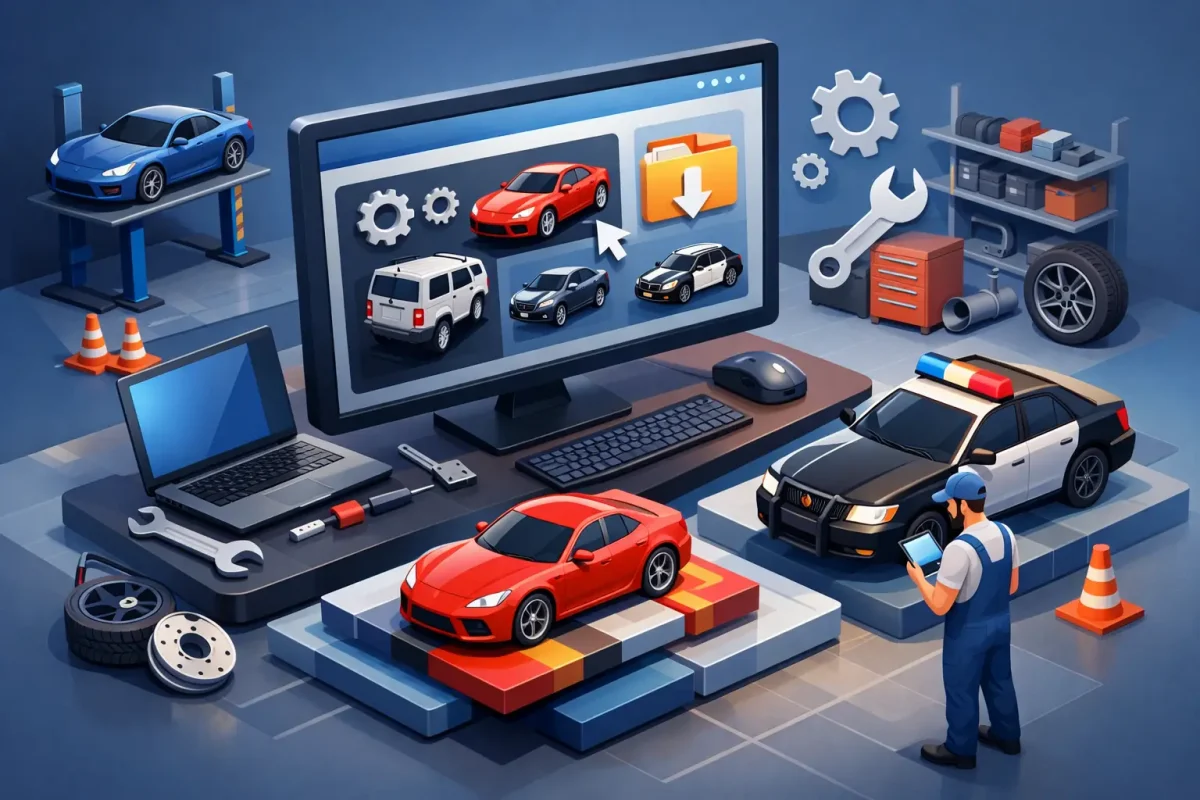
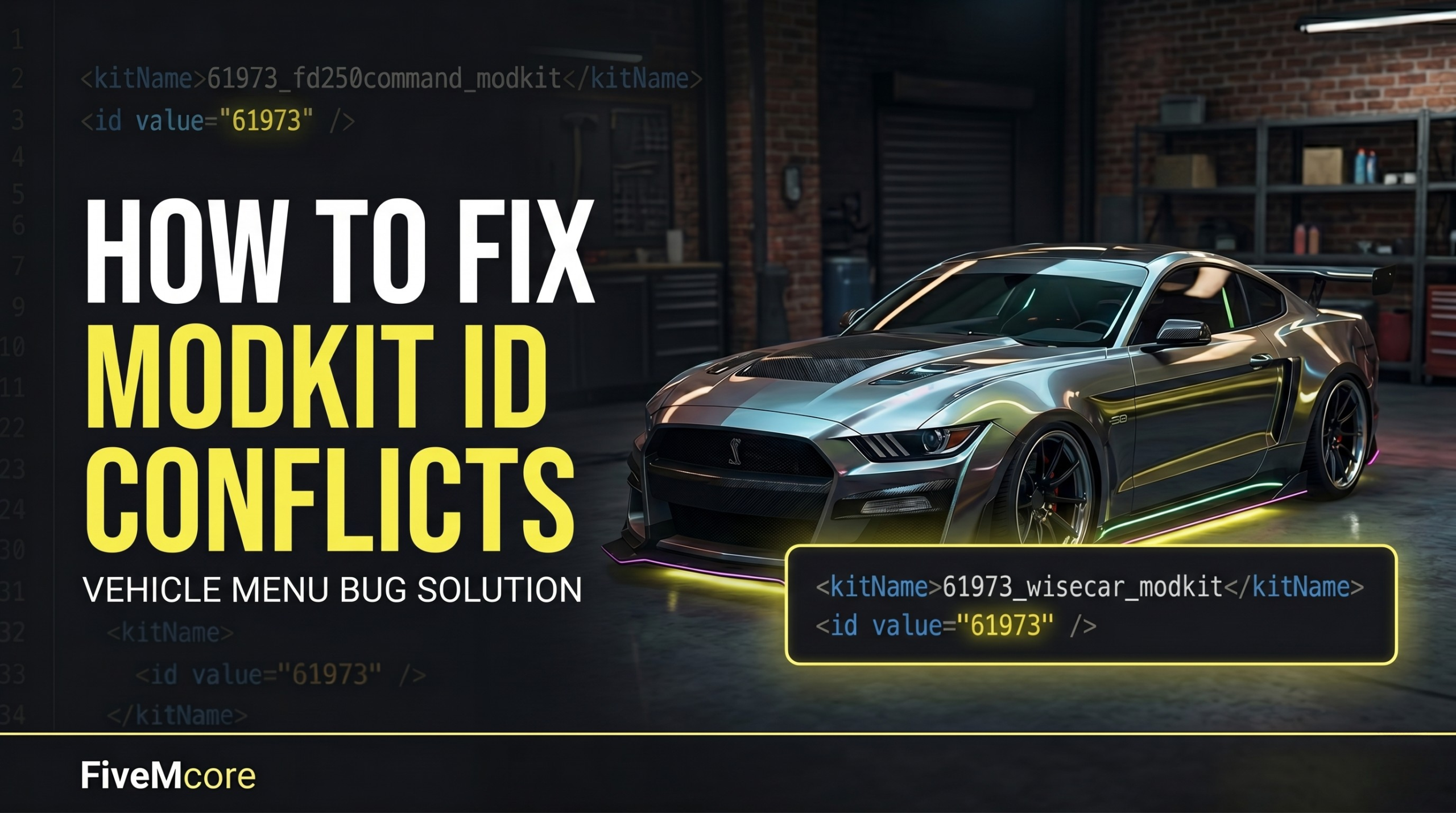
When you add multiple custom or add-on vehicles to your FiveM server, they often come with custom tuning parts defined via modkits. However, if two or more vehicles share the exact same Modkit ID inside their data configuration files, a conflict occurs.
Common symptoms of this issue include:
- The vehicle customization or mechanic menu (such as vMenu or custom mechanic scripts) fails to open entirely.
- The modification categories (spoilers, bumpers, etc.) appear empty or fail to load any items.
This problem frequently happens when setting up custom FiveM police cars or mass-importing large FiveM vehicle packs that haven’t been optimized for ID distribution. In this guide, we will show you the clean, manual way to re-index your modkit IDs without relying on extra resource scripts.
Step-by-step Solution: Changing Modkit IDs
To completely resolve the overlap, we must edit two separate metadata files within your vehicle’s resource folder: carcols.meta and carvariations.meta. The key is ensuring that the numerical values and structure names match perfectly across both files.
Step 1: Edit the carcols.meta File
Navigate to your vehicle’s data folder and open the carcols.meta file using a standard code editor like Notepad++ or Visual Studio Code.
- Search for the
<kitName>and<id value="..." />tags associated with the vehicle. - Change the numerical ID value to a unique random number between 2 and 6 digits (for example,
61973). Make sure this ID is not used by any other vehicle on your server.
<kitName>488123124_wisecinq_modkit</kitName>
<id value="488123124" />
Figure 1: Make sure the number at the beginning of the kitName matches the id value exactly as shown above.
Step 2: Edit the carvariations.meta File
Next, we need to map the new ID designation to the vehicle’s variation profiles so the server links them up correctly. Open the carvariations.meta file for the same vehicle asset.
- Scroll down or use search to locate the
<kits>structure block. - Update the string inside the
<Item>element to match the exact text you used inside the<kitName>tag in Step 1.
<kits>
    <Item>488123124_wisecinq_modkit</Item>
</kits>
Figure 2: The kit name inside carvariations must be identical to the kitName defined in your carcols file.
Step 3: Verification & Server Restart
Double-check that all naming strings and IDs align flawlessly:
- ID number in
carcols.meta: 488123124 - Kit String name in
carcols.meta: 488123124_wisecinq_modkit - Item String name in
carvariations.meta: 488123124_wisecinq_modkit
Save both files. To prevent unexpected errors or crashes, do not hot-restart the asset while inside the vehicle. The safest option is to save your changes and completely restart your FiveM server.
Troubleshooting Tips
- Menu still empty? The new ID code you selected might still accidentally collide with another vehicle pack already running on your framework. Try picking a completely different numeric string and repeat the steps.
- Avoid Default IDs: Do not assign very basic integers like
0,1, or2, as these are natively reserved by GTA V baseline game directories.